
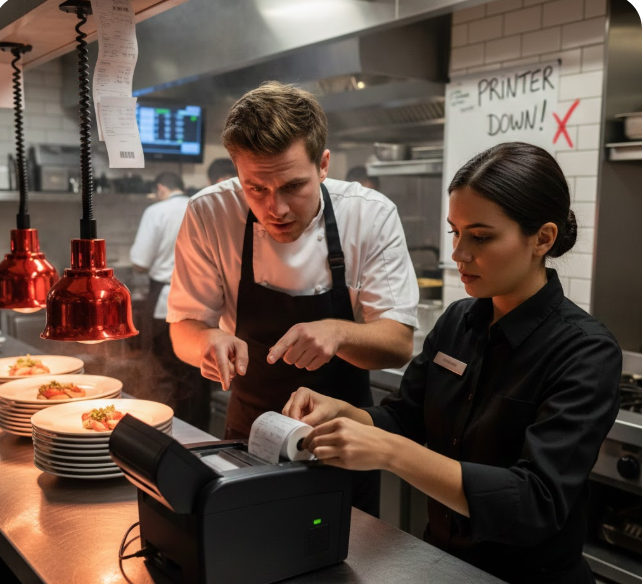
In a busy restaurant, POS printers play a critical role. They send orders to the kitchen, print customer receipts, and keep operations running smoothly. When a printer stops working, orders get delayed, staff get frustrated, and customers are left waiting.
The good news is that most POS printer problems are simple and easy to fix—if you know where to look. This guide explains the most common POS printer issues in restaurants and how to troubleshoot them quickly without needing a technician every time.
1. Printer Not Printing at All
Common causes:
- Printer is turned off
- Power cable is loose
- Network connection issue
- Printer not selected in POS settings
How to fix:
- Check that the printer is powered ON
- Reconnect the power cable securely
- Restart the printer and POS system
- Go to POS settings and confirm the correct printer is selected
💡 Tip: Always restart the printer first—it solves many basic issues.
2. Paper Jam or Paper Not Feeding
Common causes:
- Incorrect paper size
- Paper roll loaded incorrectly
- Torn paper inside the printer
How to fix:
- Open the printer cover
- Remove the paper roll and reinsert it correctly
- Ensure the paper feeds from the bottom of the roll
- Remove any small torn pieces of paper
💡 Tip: Use only recommended thermal paper for your printer model.
3. Blank Receipts or Faded Printing
Common causes:
- Paper loaded upside down
- Low-quality thermal paper
- Dirty print head
How to fix:
- Flip the paper roll and try again
- Replace with high-quality thermal paper
- Clean the print head gently with a soft cloth
💡 Tip: Thermal paper prints on only one side—if it’s blank, the paper is likely upside down.
4. Printer Prints Garbled or Random Characters
Common causes:
- Incorrect printer driver
- Wrong paper width setting
- Firmware mismatch
How to fix:
- Check printer driver settings in your POS system
- Ensure the paper width matches the printer configuration
- Restart both POS and printer
💡 Tip: Avoid changing printer settings unless instructed by your POS provider.
5. Kitchen Orders Printing in the Wrong Location
Common causes:
- Incorrect printer routing
- Menu items not assigned properly
- Shared printer conflicts
How to fix:
- Check kitchen routing rules in the POS system
- Assign menu items to correct kitchen printers
- Use separate printers for kitchen and bar if possible
💡 Tip: Clearly label printers (e.g., “Grill”, “Bar”, “Pizza”) to avoid confusion.
6. Printer Offline or Disconnected
Common causes:
- Network cable unplugged
- Wi-Fi connection lost
- Router issues
How to fix:
- Check Ethernet or USB cables
- Restart the router
- Reconnect printer to the network
- Test printer connection from POS settings
💡 Tip: Wired printers are more reliable than Wi-Fi in busy kitchens.
7. Slow Printing During Busy Hours
Common causes:
- Network congestion
- Too many printers sharing one router
- Old printer hardware
How to fix:
- Reduce unnecessary network usage
- Assign critical printers a wired connection
- Upgrade older printer models
💡 Tip: Kitchen printers should be on a stable, dedicated connection.
8. Printer Keeps Cutting Paper Incorrectly
Common causes:
- Auto-cut setting disabled
- Dull cutter blade
- Paper thickness mismatch
How to fix:
- Enable auto-cut in POS settings
- Replace worn-out cutter if needed
- Use correct paper thickness
💡 Tip: Avoid pulling paper manually—it damages the cutter.
9. Printer Makes Loud or Unusual Noise
Common causes:
- Loose internal parts
- Paper misalignment
- Mechanical wear
How to fix:
- Open printer and re-align paper
- Remove any obstructions
- If noise continues, contact support
💡 Tip: Unusual noise often signals early hardware failure—don’t ignore it.
10. Printer Stops Working After Power Cut
Common causes:
- Power surge
- Network reset
- IP address changed
How to fix:
- Restart printer and POS terminal
- Check network connection
- Reassign printer in POS settings
💡 Tip: Use a surge protector to prevent damage during power cuts.
11. Best Practices to Prevent Printer Problems
Preventing printer issues is easier than fixing them.
Follow these habits:
- Clean printers weekly
- Keep spare paper rolls nearby
- Label all printers clearly
- Train staff on basic troubleshooting
- Keep backup printers ready
- Perform daily printer tests
12. When to Call POS Support
Call your POS provider if:
- Printer hardware is damaged
- Firmware update is required
- Printer fails after all basic fixes
- Network setup needs reconfiguration
A reliable POS provider should offer fast support, especially during business hours.
Final Thoughts
POS printer issues are one of the most common problems in restaurants—but also the easiest to manage with the right knowledge. By understanding basic troubleshooting steps, your staff can fix problems in minutes instead of waiting for technical support.
A well-maintained POS printing system means: ✔ Faster service ✔ Fewer order mistakes ✔ Happier kitchen staff ✔ Better customer experience
Invest time in training, proper setup, and regular maintenance—and your POS printers will support your restaurant smoothly every day.




Leave a Reply